Tap Wake Mac on your phone and pick 1 to 24 hours. Your Mac gets it at its next check-in and stays awake until the time you chose. Then macOS lets it sleep as usual.
The real Flint apps: the iPhone app in the Simulator and the Mac’s Flint menu, with the wait for the check-in shortened. Wake for 3 hours, then End Wake.
Awake for the hours you choose. Nothing more.
Flint does one thing: it holds your Mac awake for the time you ask, and lets go when that time is up. It never puts your Mac to sleep; macOS does that on its own, as it always has.
Try it here
Wake it from the phone. Watch the Mac.
Tap Wake Mac on the phone, then watch the Mac. End Wake on either one ends it, and the other follows.
Here the phone has woken the Mac, and Flint holds it awake until 18:15; its menu on the Mac says so.
A simulation on this page. The clock runs fast only while it waits for a check-in. Nothing is sent and no Mac wakes. A real Mac needs its lid open.
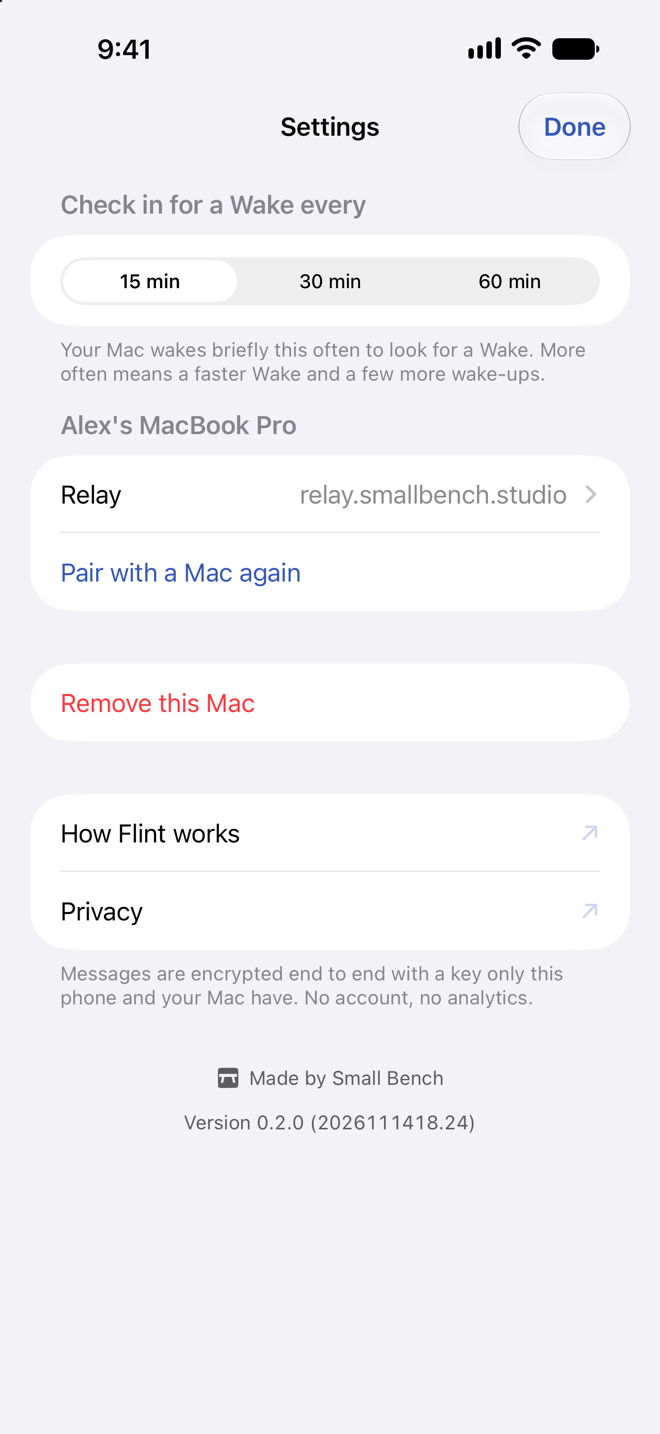
One setting, in Flint’s Settings on the Mac or the phone.
15:15sped upAwake until 18:15The Mac checked in and got your Wake. Held awake until 18:15.
Asleep, display offNext check-in 15:15
Mon 16 Nov 15:15
Awake until 18:15
Woken from Alex’s iPhone at 15:15
Add a Phone…
Before You Leave…
Settings…⌘,
Check for Updates…
About Flint
Quit Flint⌘Q
Alex’s MacBook Pro · Flint’s menu, opened · keys 1–4 and ⌘.
15:15
Alex’s MacBook Pro
3 h left
Awake until 18:15
Checked in 15:15 · 96% · On charger
Ending the Wake
It wakes at its next check-in, by 15:15.
Alex’s iPhone · Flint
Honest limits
One setting, and what it can’t do.
Choose how often your Mac checks for a Wake: every 15, 30 or 60 minutes. More often means a faster Wake and a few more brief wake-ups.
A Wake waits for the next check-in. It isn’t instant.
Lid closed on battery: macOS keeps a MacBook asleep, whatever any app asks. Leave the lid open.
Shut down, flat or offline: a Mac in any of these can’t be woken.
Your phone can wake your Mac. It can’t drive it.
Flint only holds your Mac awake and lets go. There is no message that runs a command, opens a file, sees your screen or unlocks anything, so nobody can send one.
End-to-end encrypted
Every message is sealed on one of your devices and opened only on the other. The relay in between holds sealed messages for up to 12 hours and can’t read them.
A key for each device
Each phone gets its own key. Remove one on the Mac and it stops working at once.
Paired in person
A phone joins by scanning a code shown only on your Mac’s screen. It works once and expires in 5 minutes.
No account, no analytics
Nothing to sign up for. The apps don’t count you, and neither does this page.
Asleep between Wakes
Your Mac sleeps as usual and wakes for a few seconds at each check-in. Only a Wake you asked for keeps it up.
Never puts it to sleep
Flint can’t sleep your Mac or turn its screen off, so it never gets in the way of someone using it. macOS decides when to sleep.
Run your own relay if you like. The protocol is open, and the Mac and phones can use a relay you host instead of ours.
Setting up asks for your Mac password once, to change sleep settings and schedule wake-ups. Every setting is backed up first, and Undo all changes puts each one back.
Turning the screen lock off is a separate choice, off by default, with a warning. Undo puts it back too.
Set up changesUndo all changes
sleep settings put back
scheduled check-ins cancelled
Wake for network access put back
restart after a power cut if supportedput back
screen lock off only if chosenput back
the helper that wakes it removed
each phone’s key deleted
Free. Start with the Mac.
Flint comes as a set: the Mac app from this website, the iPhone app from the App Store, and Android later. Install the Mac app, click Set up… once, then pair your phone with the code it shows. Used Flint 0.1? Update both apps and pair again.
The Mac app looks for a newer version on smallbench.studio at most once a day and asks before installing (off switch in Settings); the phone apps update through their stores.
Flint 0.2.0 for Mac16 November 2026Latest
A fresh start, and a simpler Flint: wake your Mac for 1 to 24 hours, see the time left on a ring, and end a Wake early with End Wake (5 seconds to undo on the phone).
Your Mac checks for a Wake every 15, 30 or 60 minutes. A Wake holds it awake until its end time; Flint never puts the Mac to sleep.
Removed: the Sleep button, modes and daily hours, trip mode and rehearsal, Wake ahead, the weekly scoreboard, the heat and battery guardian, “when an app finishes”, widgets, the Live Activity, Siri and Shortcuts, notifications and the assistant connector.
iPhone 0.2 is on its way to the App Store. 0.1 and 0.2 can’t talk to each other, so until it arrives the App Store iPhone app (0.1) can’t wake a Mac on 0.2. When it arrives, update it and pair again.
Flint for iPhone 0.1.014 November 2026
The iPhone app is on the App Store, free. Pair it with your Mac using the code Flint shows on its screen.
Wake Mac, a Live Activity that counts down to the next check-in, Lock Screen and Home Screen widgets, and “Wake my Mac with Flint” in Siri.
Add a phone… and Add an assistant… always start fresh with a new code, never the last pairing’s result.
Flint 0.1.014 November 2026
First public release of the Mac app.
Click Set up… once and enter your Mac password: Flint installs its small helper, changes sleep settings and schedules check-ins. Undo all changes puts everything back.
Android is coming. (The iPhone app came out the same day; see above.)
Up to one check-in. Your Mac checks for a Wake every 15 minutes by default (or every 30 or 60, your choice), so a Wake reaches it within that time, often sooner. Once it’s awake it checks every 30 seconds, so End Wake lands within about half a minute.
What ends a Wake?
Only the end time you chose, or End Wake from your phone or the Mac. Another app finishing, idle time or a check-in don’t end it. Flint never puts your Mac to sleep: when the Wake ends it lets go, and macOS sleeps the Mac by its own rules when nobody is using it.
Does it work with a MacBook’s lid closed?
Not on battery. With the lid closed on battery, macOS puts a MacBook to sleep and no app can hold it awake. Leave the lid open.
What can’t it wake?
A Mac that is shut down, out of battery or offline. Flint wakes a sleeping Mac at its next check-in; it can’t switch one on.
Does it work with my assistant?
Flint keeps the Mac awake; whatever you use to work on it from afar, an assistant’s own app, screen sharing or SSH, connects as usual. Flint itself has no assistant connector: only your paired phones and the Mac app can start or end a Wake.
What does it do to my battery?
Between Wakes your Mac sleeps as usual and wakes for a few seconds at each check-in. During a Wake it stays awake, so it uses power like any awake Mac. End Wake lets go early.
Do I need an account?
No. There’s no sign-up and nothing to pay. Your phone and your Mac pair once, in person, by scanning a code on the Mac’s screen.
What if my office network blocks it?
The phone says the Wake wasn’t sent, and why. Switch to mobile data or another network and tap Try again. It never says “sent” when it wasn’t.
I used Flint 0.1. What changed?
Flint 0.2 is a fresh start and a simpler app. Update the Mac app and the phone app, then pair your phone again: 0.1 apps can’t talk to 0.2. Gone: the Sleep button, modes and daily hours, trip mode, Wake ahead, widgets, the Live Activity, Siri, notifications and the assistant connector.
Can I undo everything?
Yes. Undo all changes on the Mac puts every setting back the way it was, removes the helper, deletes the keys and cancels scheduled wake-ups.